Managing User Roles
This topic describes user roles within managed accounts that allow different levels of access privilege.
When logged in to a partner account, you can assign user roles to control the actions and permissions of users in managed accounts. The actions and permissions change if the Service Approval Queue feature is active. These tables summarize each user role and its supported functionality, indicated by a ✓.
For information about the Service Approval Queue feature, see Service Approval Queue.
Important
Only Company Admins can create managed accounts and onboard managed account users.
Action |
 Company Admin |
 Technical Admin |
 Technical Contact |
 Finance |
 Financial Contact |
 Read Only |
|---|---|---|---|---|---|---|
| Create managed account | ✓ | |||||
| Onboard managed account users | ✓ | |||||
| Create services | ✓ | ✓ | ✓ | |||
| Terminate services | ✓ | ✓ | ||||
| Design services | ✓ | ✓ | ✓ | ✓ | ✓ | ✓ |
| Update a service | ✓ | ✓ | ✓ | |||
| View services | ✓ | ✓ | ✓ | ✓ | ✓ | ✓ |
| Lock and unlock services | ✓ | |||||
| Create, view, and edit service keys | ✓ | ✓ | ✓ | |||
| View usage | ✓ | ✓ | ✓ | ✓ | ✓ | ✓ |
| Create, view, and update users | ✓ | |||||
| Update user details | ✓ | ✓ | ✓ | ✓ | ✓ | ✓ |
| View User Activity logs | ✓ | ✓ | ✓ | ✓ | ✓ | ✓ |
| View Company Activity logs | ✓ |
Action |
Company Admin |
Technical Admin |
Technical Contact |
Finance |
Financial Contact |
Read Only |
|---|---|---|---|---|---|---|
| Create managed account | ✓ | |||||
| Onboard managed account users | ✓ | |||||
| Design services | ✓ | ✓ | ✓ | ✓ | ✓ | ✓ |
| Submit new services for approval | ✓ | ✓ | ✓ | |||
| Submit service changes for approval | ✓ | ✓ | ✓ | |||
| Submit service terminations for approval | ✓ | ✓ | ✓ | |||
| Withdraw a service approval request | ✓ | ✓ | ✓ | |||
| View services | ✓ | ✓ | ✓ | ✓ | ✓ | ✓ |
| Lock and unlock services | ✓ | |||||
| Create, view, and edit service keys | ✓ | ✓ | ✓ | |||
| View usage | ✓ | ✓ | ✓ | ✓ | ✓ | ✓ |
| Create, view, and update users | ✓ | |||||
| Update user details | ✓ | ✓ | ✓ | ✓ | ✓ | ✓ |
| View User Activity logs | ✓ | ✓ | ✓ | ✓ | ✓ | ✓ |
| View Company Activity logs | ✓ |
Here are some details to consider when creating user roles:
- Company Admin – We recommend limiting the number of Company Admins to only those who require full access, but defining at least two Company Admins for redundancy.
- Technical Admin – This role is for technical users who know how to create and approve orders.
- Technical Contact – This role is for technical users who know how to design and modify services but don’t have the authority to approve orders.
- Finance – Finance users should have a financial responsibility within the organization while also understanding the consequences of their actions if they terminate or approve services.
- Financial Contact – This user role is similar to the Finance role without the ability to place and approve orders, terminate services, or administer service keys.
- Read Only – Read Only is the most restrictive role. Note that a Read Only user can view service details which you may want to keep secure and private. A user with the read-only role can view service details which might contain information about the service that you want to keep secure and private.
You can add user roles when you create a new user, or you can edit user information to change their role. For more information about adding a new user, see Adding and Modifying Managed Account Users.
Note
Only Company Admins can edit user credentials.
To manage user roles and permissions
- Log in as a Company Admin.
-
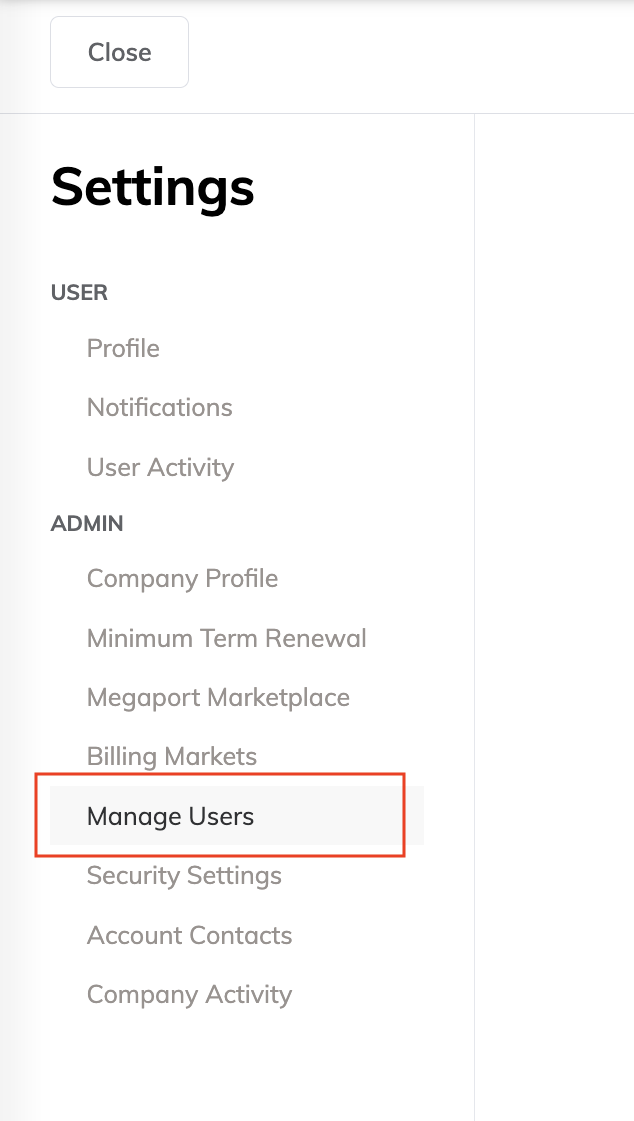
Choose User Menu > Admin Settings > Manage Users.
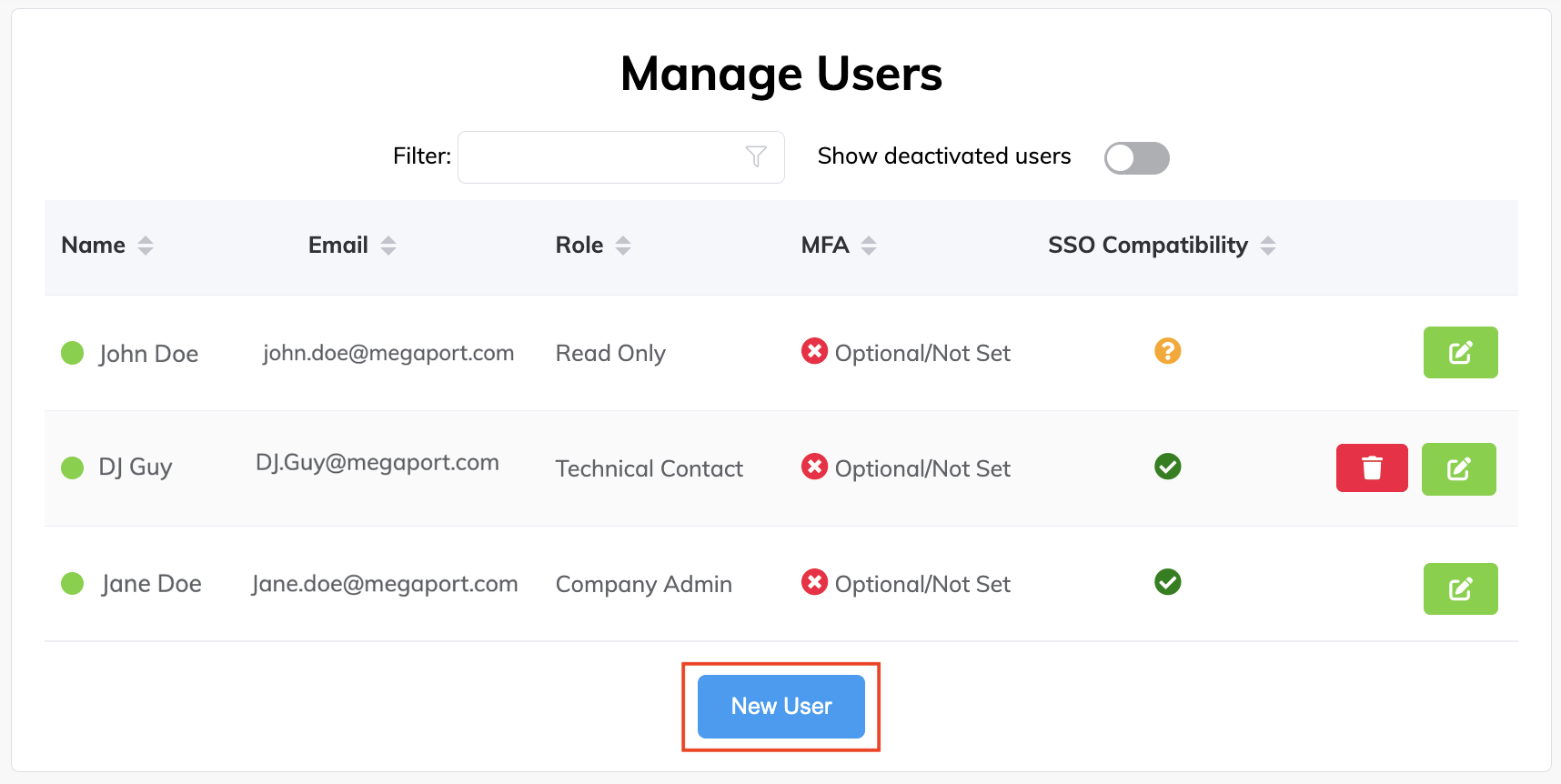
The Manage Users page appears. This page lists existing users and you can add a new user or edit existing user privileges and contact information.
-
Click
 (Edit) to modify an existing user’s role or click New User (at the bottom of the page) to set up a new user and define their role.
 - Select the role for the user.
- Click Save.