Switching Account Types
This topic describes how to switch from a partner account to a managed account and vice versa from the Dashboard. For more information, see Megaport Portal Dashboard.
Switching from a partner account to a managed account
The Megaport Partner Program offers two account models that enable partners to create account hierarchies for the Partner Program services: partner and managed.
To switch from a partner account to a managed account
-
While logged in to the partner account, go to the Dashboard.
The left navigation confirms that you are in a partner account.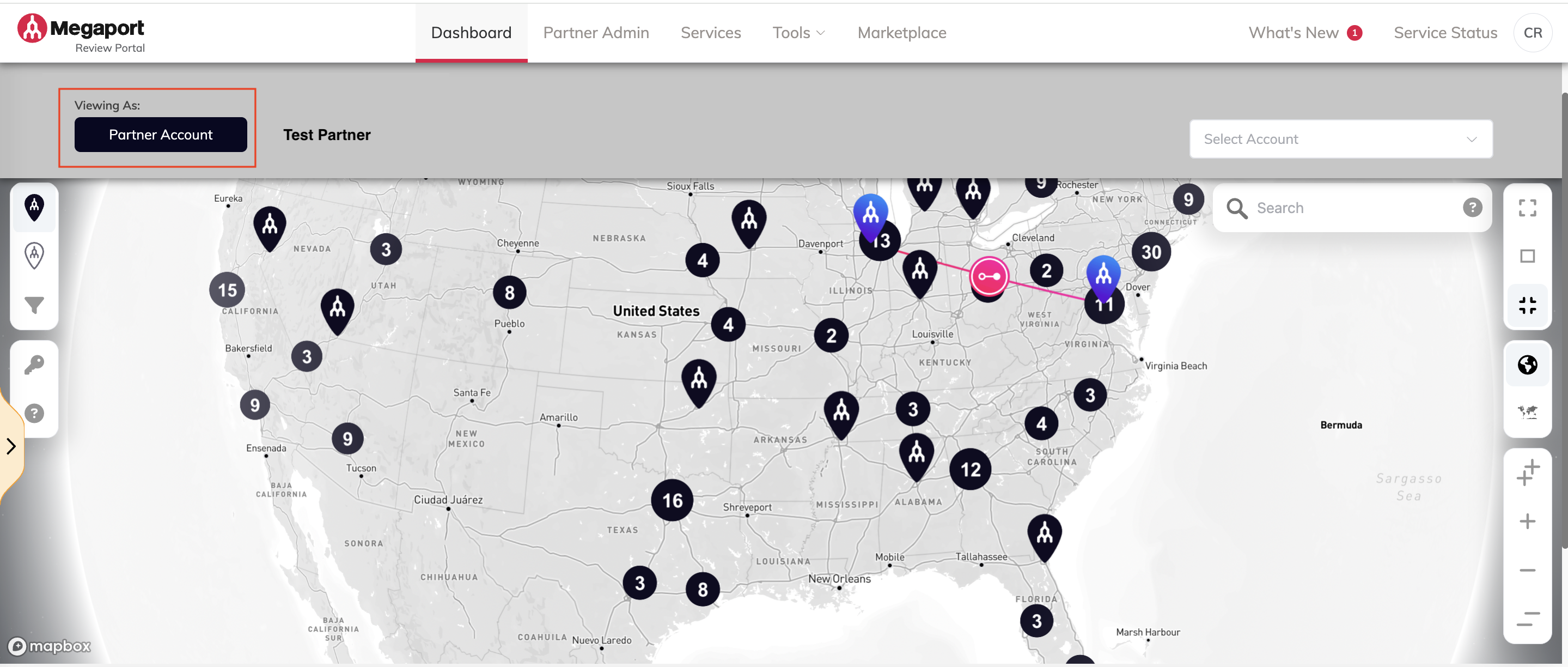
-
Select a managed account from the account selector in the left navigation.
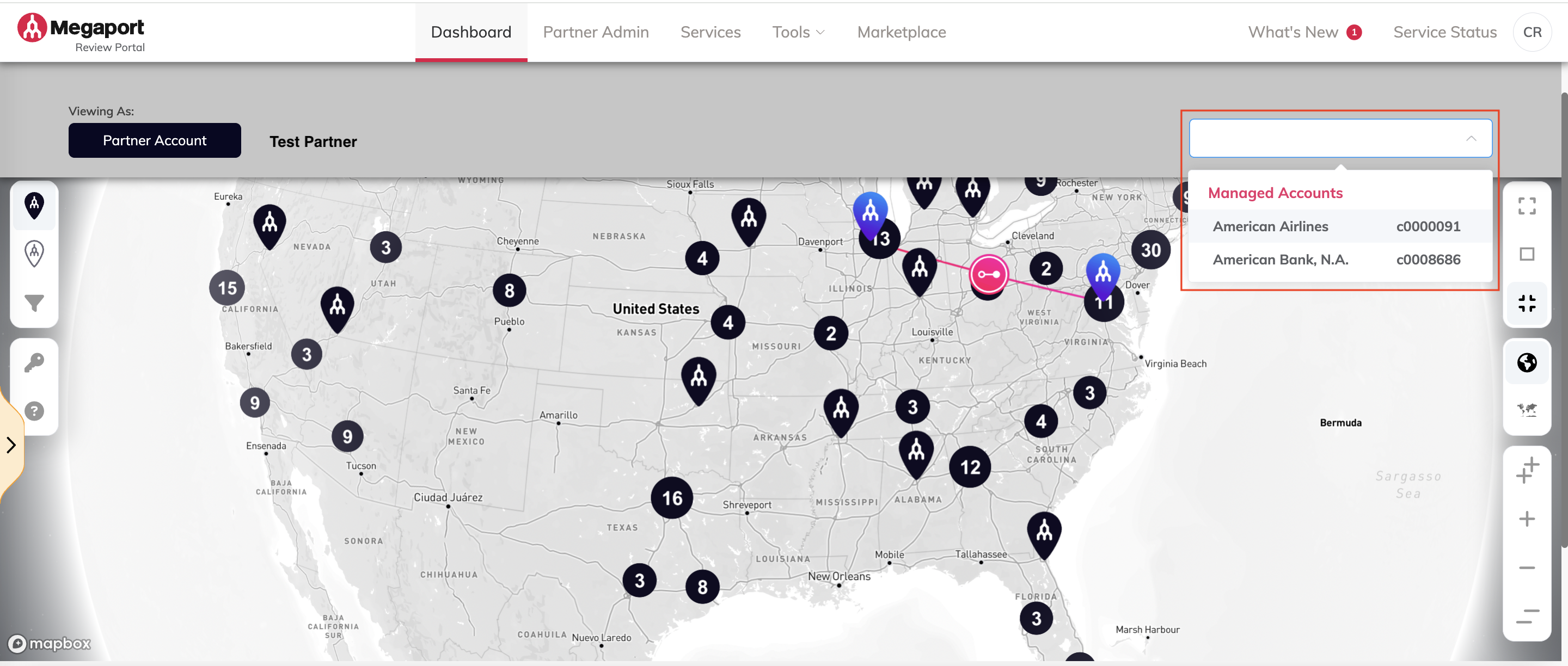
-
Confirm that you want to switch from a partner account to a managed account.
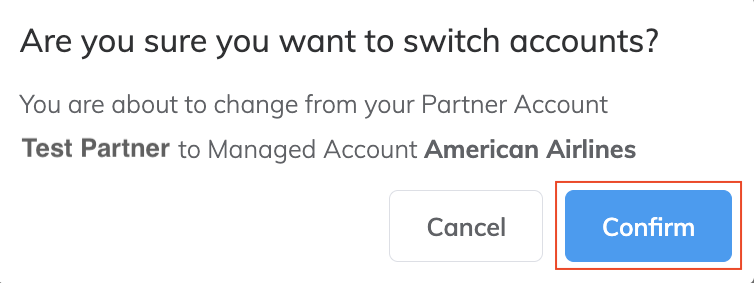
The left navigation confirms that you are in a managed account.

Switching from a managed account to a partner account
To switch from a managed account to the partner account
-
On the managed account Dashboard, select the partner account from the account selector in the left navigation.
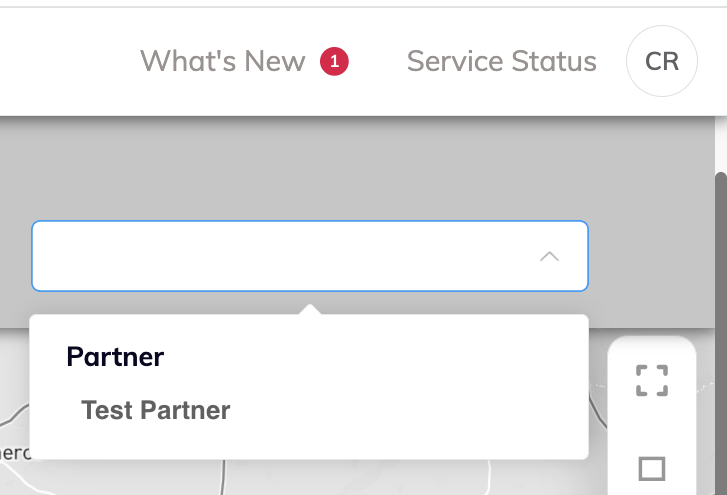
-
Confirm that you want to switch from a managed account to the partner account.
The left navigation confirms that you are in a partner account.
Switching from a managed account to another managed account
To switch from a managed account to another managed account
-
From the managed account Dashboard, select the managed account from the account selector in the left navigation.
-
Confirm that you want to switch from one managed account to another.