Service Approval Queue
The Service Approval Queue allows users in managed accounts to configure services, but prevents them from ordering services. Users can instead submit service configurations for approval by a Technical Contact, Technical Admin, or Company Admin in the Partner company.
This helps to:
- Improve control – Provides partners with a way to approve or deny orders made by their managed accounts, so there is less risk of unwanted charges.
- Prevent mistakes – Prevent non-technical users from accidentally ordering, changing, or terminating services, which can cost money and create extra work to fix.
- Make approvals easier – Instead of handling approvals in the shopping cart, this provides a queue for managing all approval requests.
For information about user roles, see Managing User Roles.
Activating the Service Approval Queue
To activate the Service Approval Queue for a managed account, either:
- Activate it when creating the managed account. For more information, see Creating a Managed Account.
- Update the configuration for the managed account.
To activate the Service Approval Queue
- Log in as a Company Admin.
-
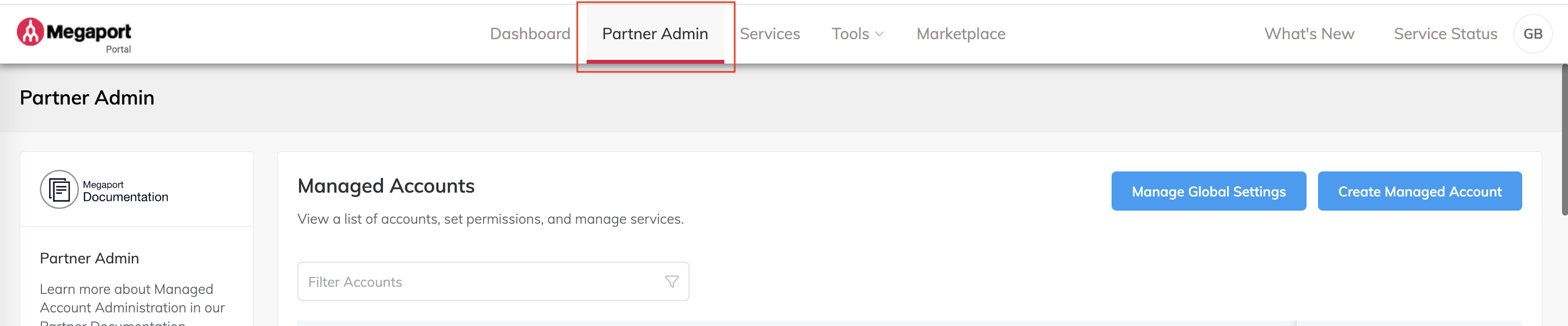
Click Partner Admin in the left navigation.
The Managed Accounts page opens.
-
From the Manage Accounts page, find the account to modify.
You can use the filter at the top of the page to focus the list. - Click Edit next to the managed account.
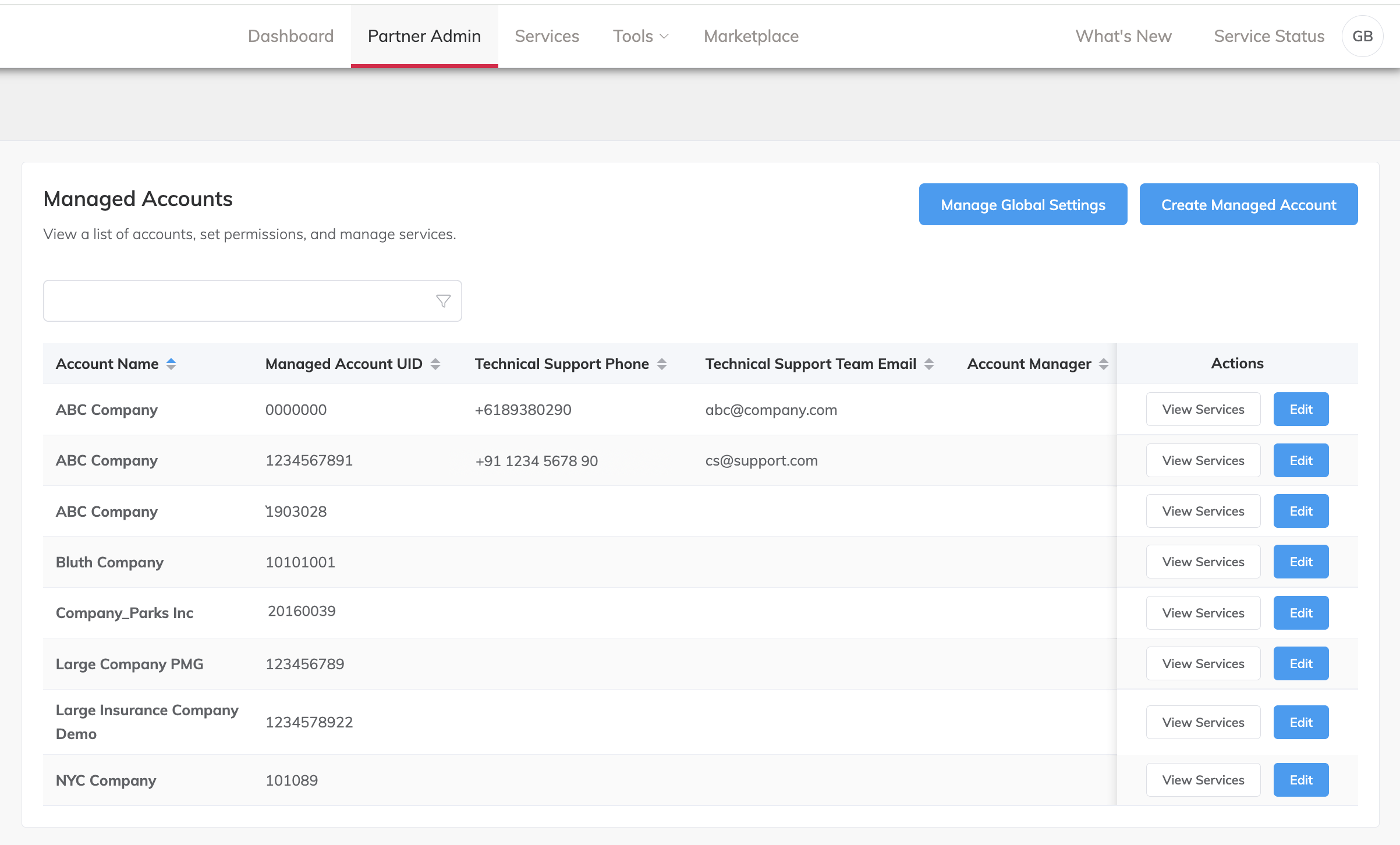
The Account Overview for the managed account is displayed. - Select the Feature Configuration tab.
- Turn on the Service Approval Queue setting to activate the service approval queue for the managed account.
How users request service creation, changes, or termination
When the Service Approval Queue is active for a managed account, the procedures for creating, changing, and terminating service configurations are the same as when the Service Approval Queue is not active. When the user reviews their order to finalize it, they will have the option to Send for Approval instead of Order Now. After submission, the service disappears from your cart until approved, and you can track your request by clicking Manage Orders.
Note
You cannot add connections to a service that has a pending termination request. To resolve this:
- wait for the request to be approved or rejected.
- withdraw the termination request if you no longer want to terminate the service.
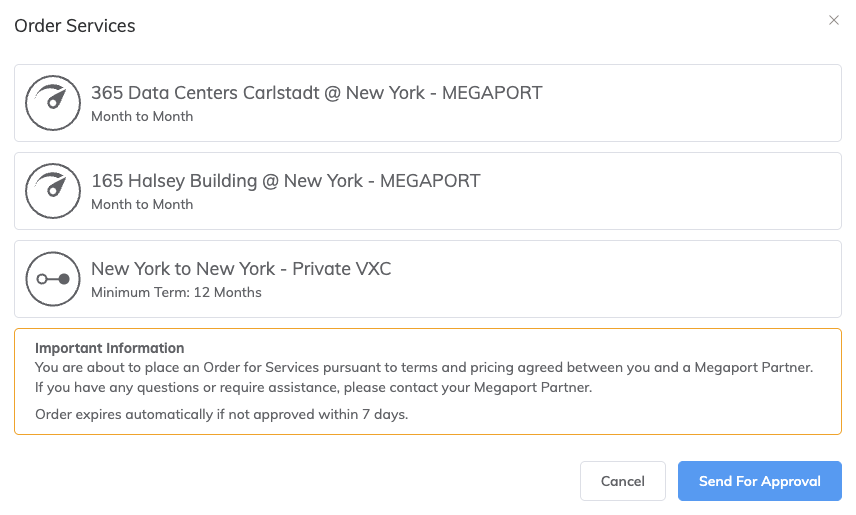
For information about ordering services, see Creating and Ordering Services.
Add-on requests
When the Service Approval Queue is active for a managed account, add-on requests also go through the approval process. For information about reviewing and approving these requests, see Reviewing and approving requests.
The following add-ons are included in the approval workflow:
- Cross Connect add-ons for Ports
- IPSec add-ons for MCRs
Reviewing and approving requests
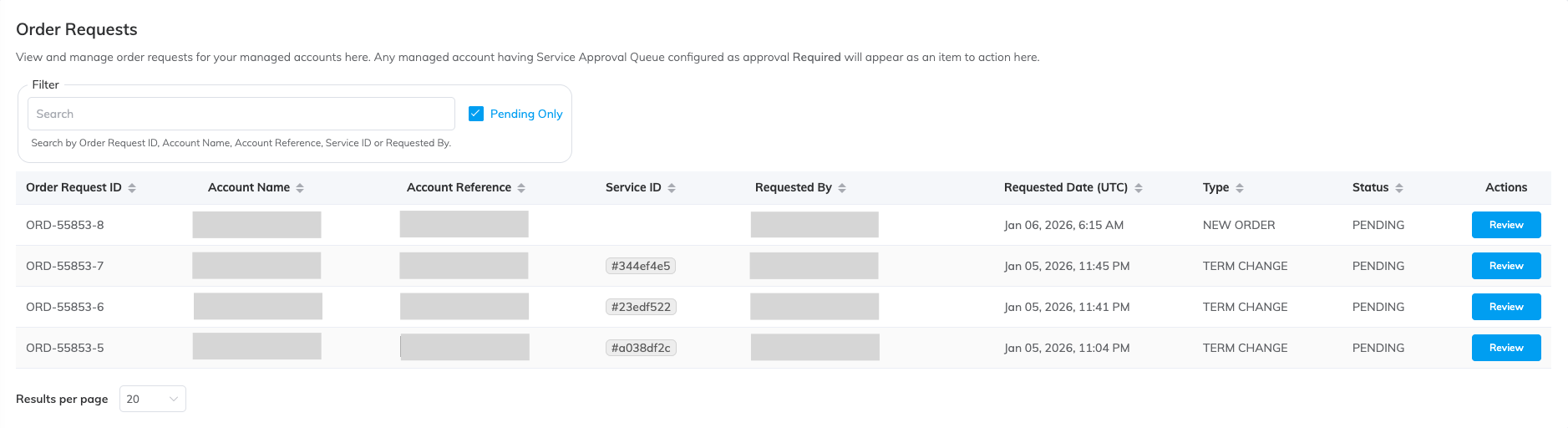
The Manage Orders option in the left navigation shows the number of pending requests (if there are any). Partner accounts will always see this option, but managed accounts will see Manage Orders only if the partner has activated the Service Approval Queue for their account. This opens the Order Requests page, which:
- For partners – Lists requests for review.
- For managed users – Lists the requests they have submitted for approval.
Partners will receive an email notification when a managed account submits an approval request.
Note
To view pending orders from managed accounts, at least one managed account must have Service Approval Queue set to Required. If no managed accounts have this setting enabled, the Order Requests page displays a warning message with a link to Partner Admin where you can configure this setting.
Important
Pending requests must be approved or rejected within 7 days. After 7 days, requests will automatically expire and cannot be changed. The managed account user must submit a new configuration for approval.
To view, approve, or reject a request
- Click Manage Orders.
-
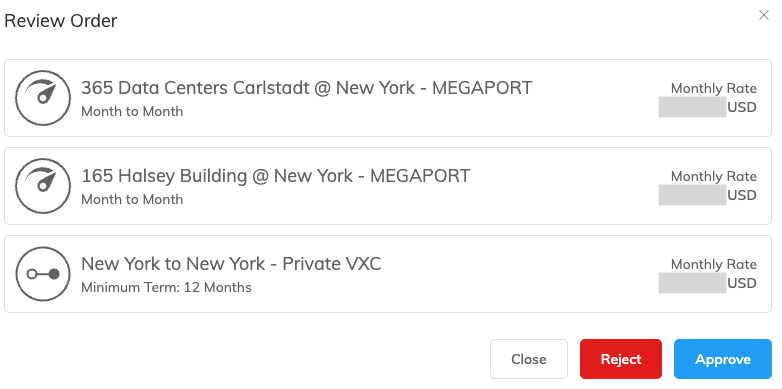
On a PENDING request, click Review to open the Review Order screen.
-
Click one of the following options:
- Approve – Approve the request and deploy the service(s) requested.
- Reject – Reject the request with a comment for the requester about why you are rejecting it.
- Close – Close the Review Order screen without approving or rejecting the request.
After approving or rejecting a request, the requester will receive an email notification about the decision.
Viewing historical requests
To view requests that have already been processed, clear the Pending Only check box on the Order Requests page. This will show all requests, including those with these statuses:
- PENDING – Requests that are awaiting review and decision.
- APPROVED – Requests that were approved and processed.
- REJECTED – Requests that were reviewed and denied.
- WITHDRAWN – Requests that were withdrawn by the requester.
- EXPIRED – Requests that were not approved or rejected within 7 days and have automatically expired. Expired requests cannot be changed. The managed account user must submit a new configuration for approval.